 Verbiform
Build a custom template
When none of the 150+ ready-made templates match the form you already work with, build your own. You describe the fields once; after that, every recording fills them by voice — and you decide exactly what gets captured and where it lands.
Open the template builder
In the app, go to Templates and choose Build your own (you’ll also find your custom ones under My Templates). You start from a blank template — no import, no setup, just the fields you want.
Name it and say what it’s for
Give the template a clear name — “Site Visit Report,” “Client Intake,” “Weekly One-on-One” — and a short description. The name is how you’ll find it later, and it helps Verbiform suggest the template when a recording sounds like a match.
Add your fields
Add a field for each thing you want to capture — customer name, date, address, findings, totals, and so on. Give each one a plain label; that label is what appears on the finished document, so write it the way you’d want it to read.
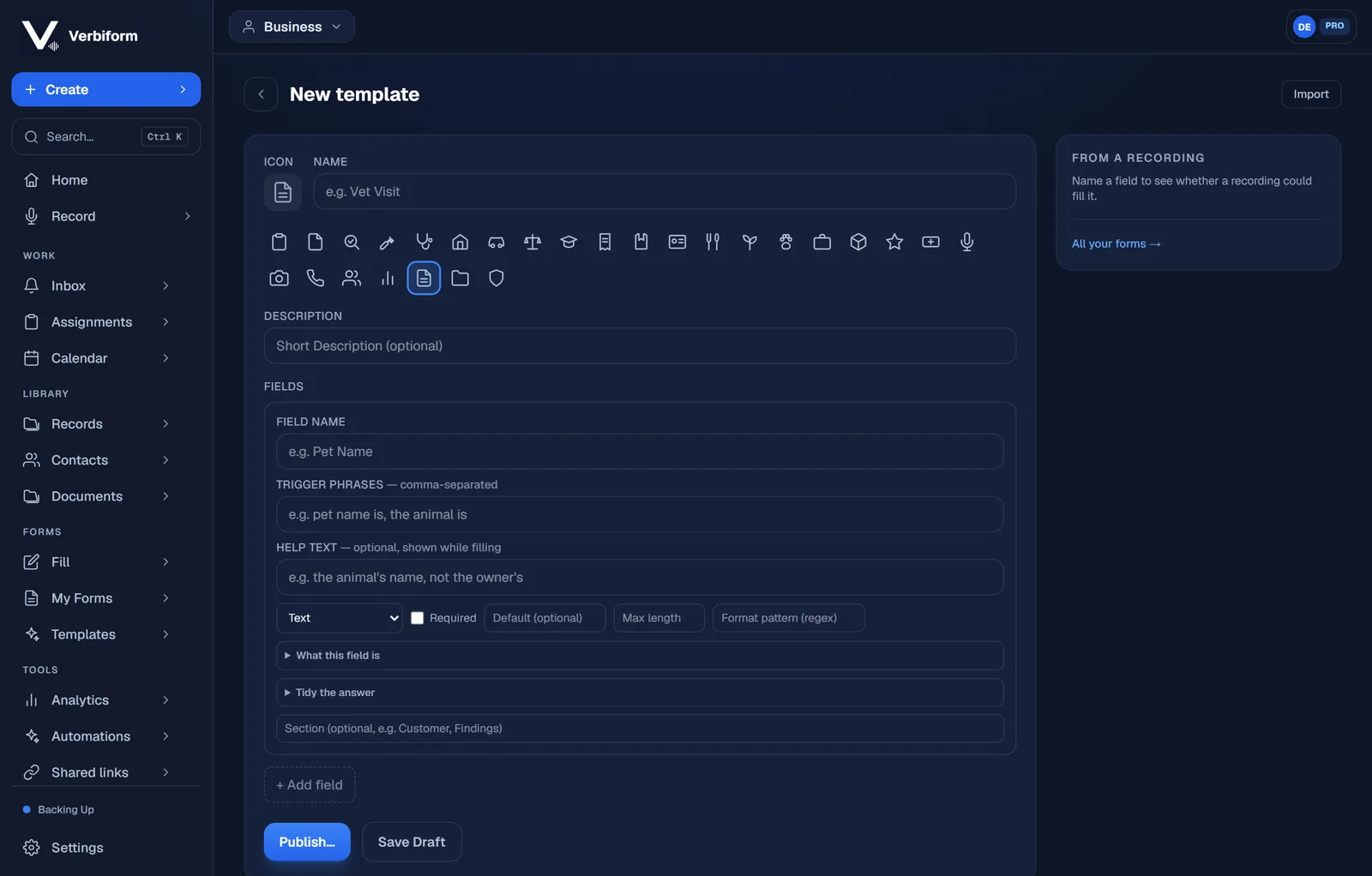
Set each field’s type and trigger phrases
Choose a type so the value is captured cleanly — text, number, date, a choice from a list, yes/no, and more. Then add the trigger phrases people actually say for that field (“the customer is,” “invoice total,” “date of visit”), mark anything that’s required, and add help text where a field needs a hint. Good triggers are what make a recording drop each detail into the right place.
Add totals, logic, or repeating rows
For anything beyond a flat form, add the pieces that fit: group fields into sections, calculate a total from other fields, show or hide a field based on an earlier answer, or use a repeating line-item table for things like parts, tasks, or attendees. Add only what your form needs — a short template is perfectly fine.
Preview it and test with a recording
Preview the layout to see how it reads, then record a short walkthrough the way you’d really dictate it. Check that each detail landed in the right field, and adjust the labels or trigger phrases for anything that didn’t. Testing with your own voice is the fastest way to get a template right.
Save it and put it to work
Save the template and it’s ready to fill by voice like any other. On a Team plan you can make it available to your whole workspace, so everyone captures the same fields the same way — and you can refine it any time without touching the records already made from it.