 Verbiform
Choose the right template
The template shapes what Verbiform fills, so it’s the first small decision you make. There are four ways to land on the right one — including not picking one at all.
Browse by category
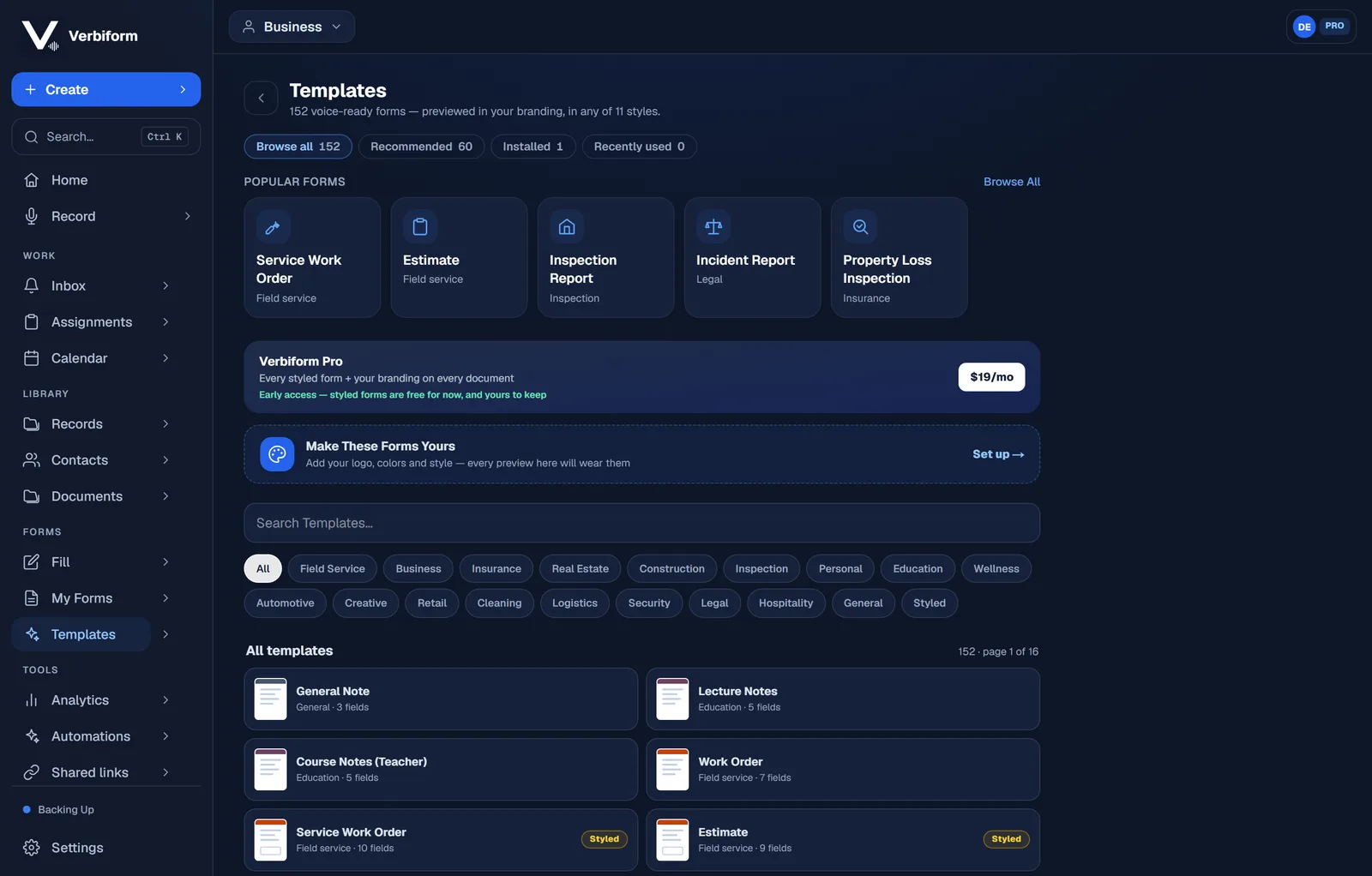
More than 150 ready-made templates are grouped by how people use them — business & meetings, field service & trades, inspections, education, and personal. Open a category to see the formats inside it.
Search for exactly what you need
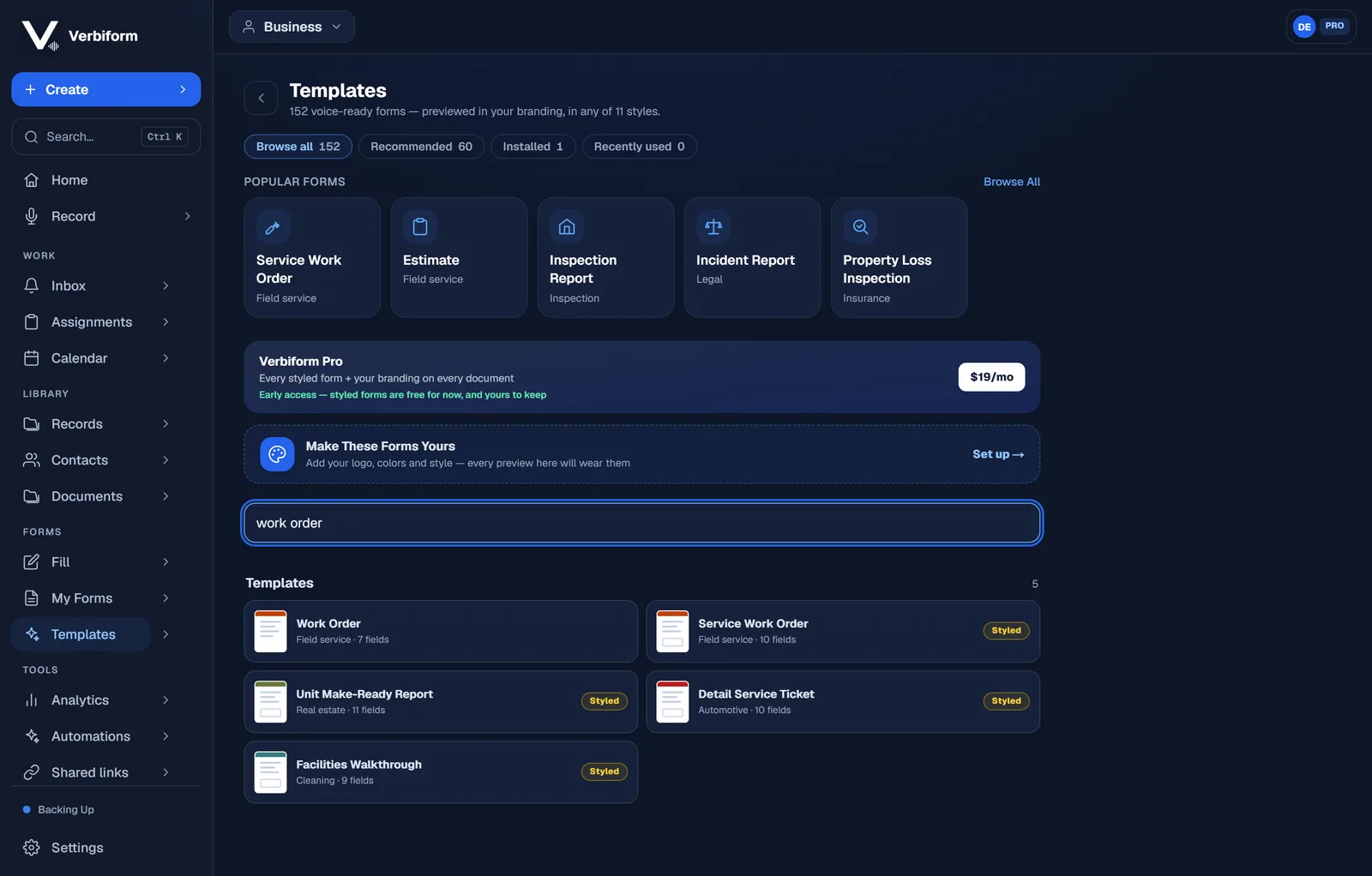
If you already know it, just type what you’d call it — “work order,” “meeting minutes,” “home inventory” — and open the closest match.
Not sure yet? Start from a blank note
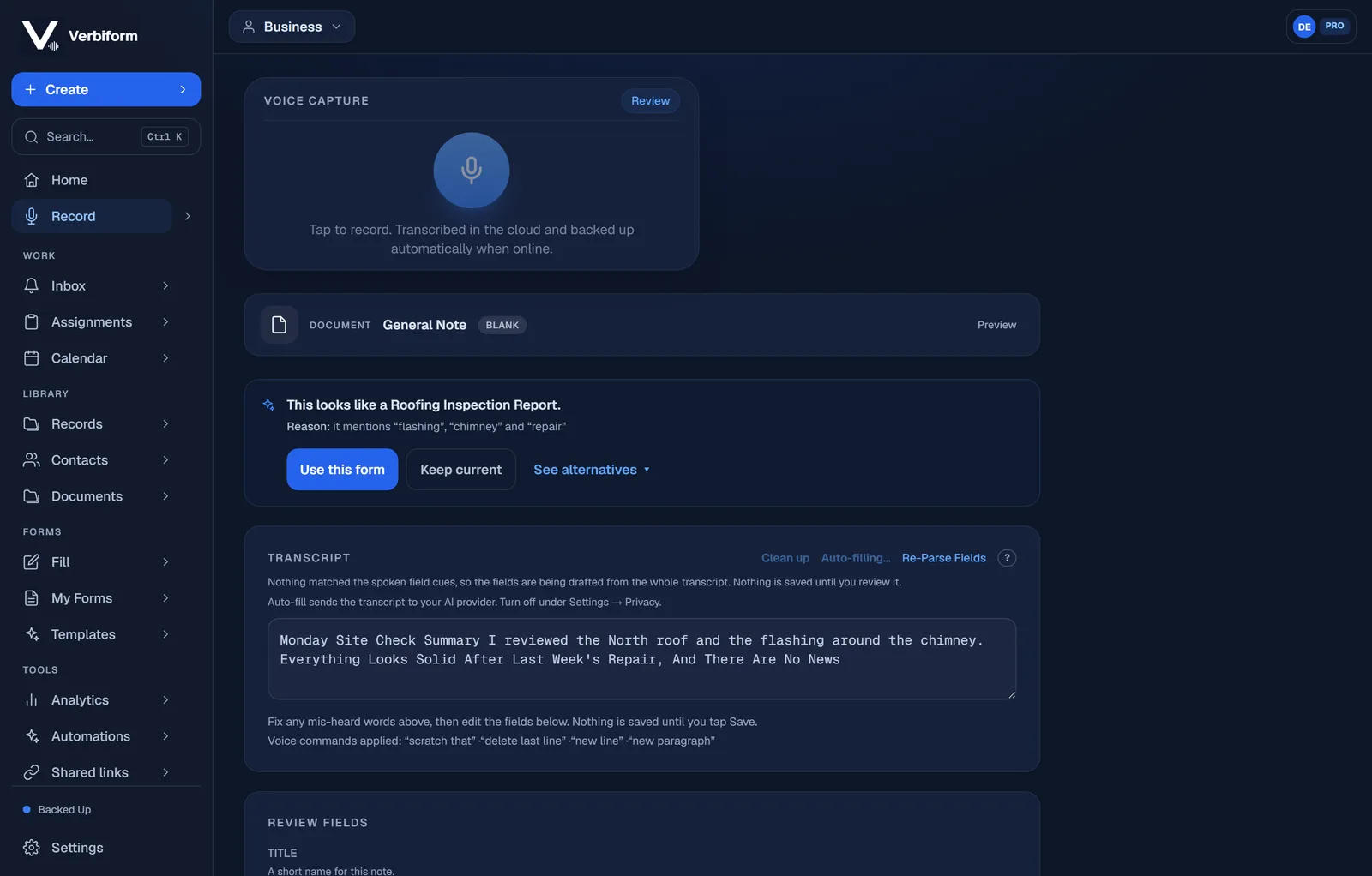
You don’t have to decide up front. Capture first, then choose a format afterward — and if what you said fits a specific form, Verbiform notices and offers it. The recording is never lost while you decide.
Make it your own
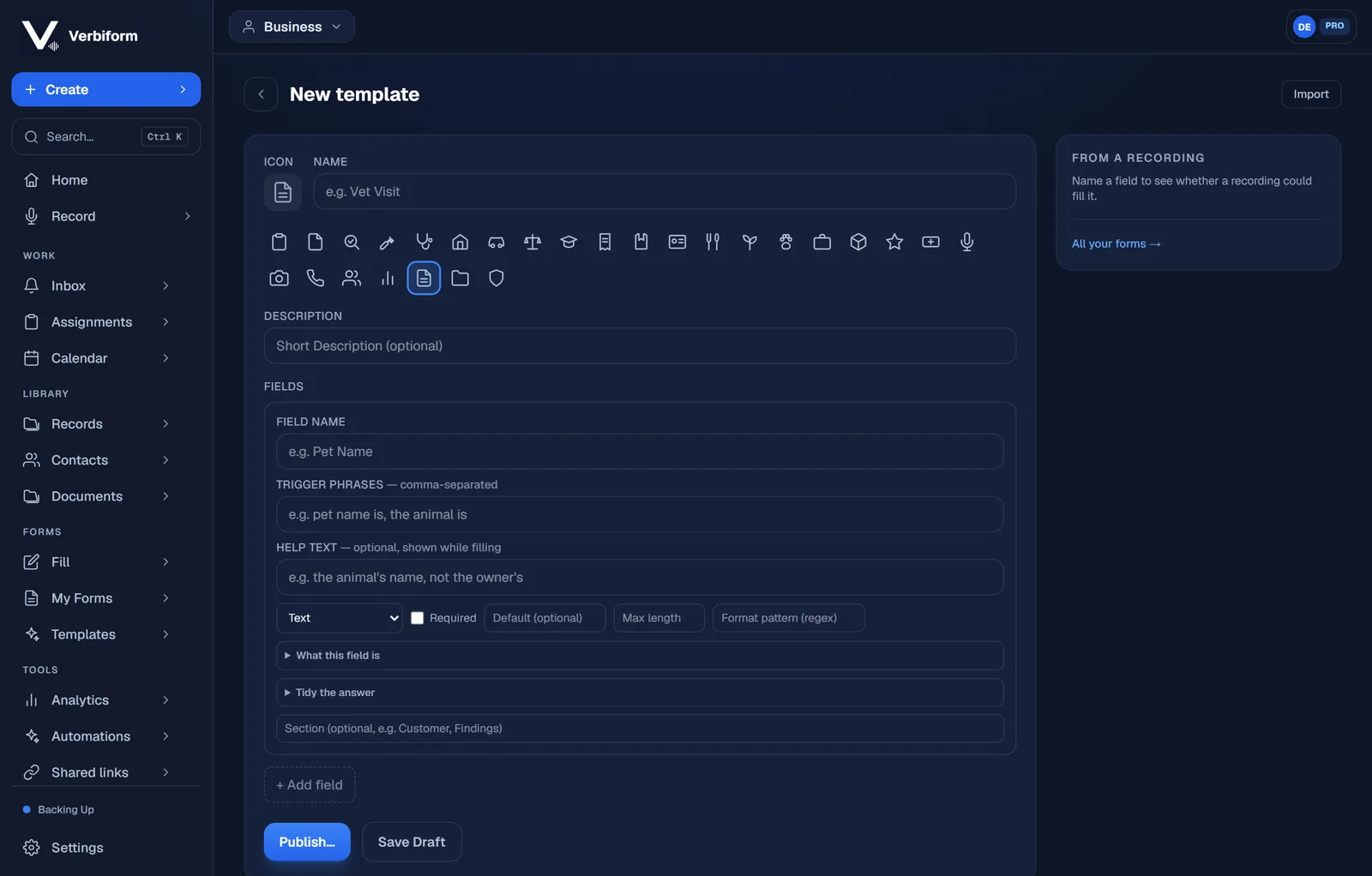
Build a custom template from scratch — name each field, add the trigger phrases that should fill it, and set its type — or import a fillable PDF and use its real fields instead.